[StarUI HUD]
; =================================
; Configuration file for StarUI HUD
; =================================
;
; Allows you to configure many different settings for your StarUI HUD layout.
; To adjust the widgets and their position and color see the widget section later in this file
;
; Some general notes and tips:
;
; Position
; ——–
; The position is specified based on a 1920×1080 layer. If you have another resolution, it will
; automatically transformed into the position on your monitor.
;
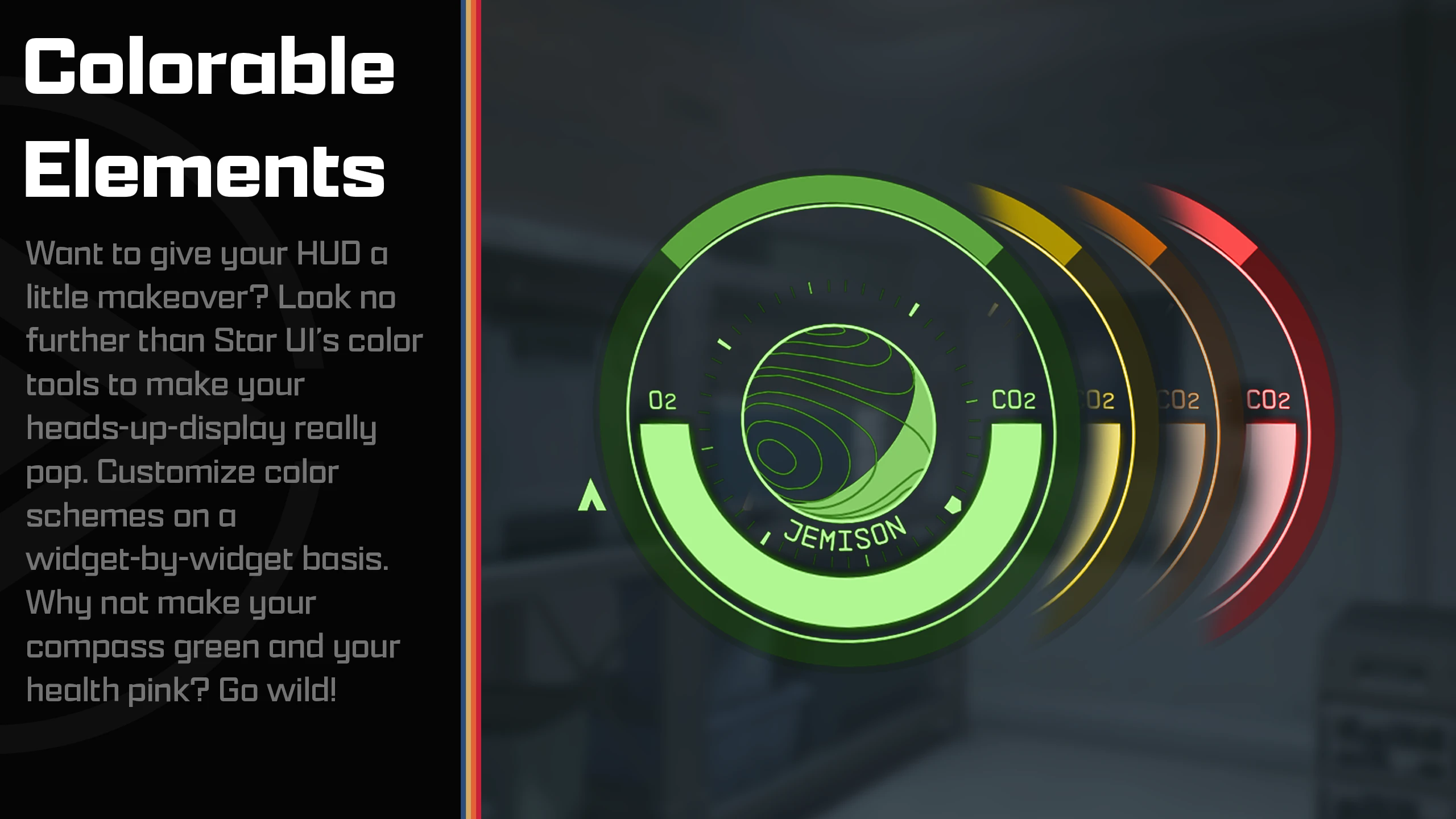
; Color
; —–
; The sColors values are color modifiers, so if apply a red color to a green element it will
; become orange!
; For most widgets you have the option bForceColor, which will force the color. But be careful,
; this setting will remove ALL color information as well as any brightness levels from the widget.
; The colors are specified as “red, green, blue(, alpha)” where alpha is optional.
; RGB values are from 0 to 255. Alpha is from 0 to 100 (percent).
; Most colors are optional overrides. So if you don’t specify a value for the widget, it will
; use the hud’s default color (sHudDefaultColor).
;
; Examples:
; black is “0, 0, 0”
; white is “255, 255, 255”
; red is “255, 0, 0”
; blue is “0, 0, 255”
; half-transparent without color is “255, 255, 255, 50”
; Color tip: Use any of the common RGB color picker on the net to find your values!
;
; Tip: You can edit this file while the game is running. A simple quick-save/quick-load should
; load the new configuration!
;
; Tip: Copy this file and rename the copy to “StarUI HUD.ini”. Then change your settings in the
; new file. The new file won’t be overwritten by mod updates!
;=============
; HUD Generic
;=============
; Default HUD color (may be overridden by a elements special color)
sHudDefaultColor = 122, 192, 244
; Use hard drop-down-shadows instead of soft ones
bHudHardDropDownShadow = 0
;=============
; Quality-Of-Life
;=============
; Preventing accidental steals. Changes the button for stealing, so you need to hold it to steal.
bHudPreventStealAccident = 1
;=============
; Item marker
;=============
; This is the circle on objects in the world you are looking at
; Enable or disable the line from the item marker (circle) to other elements for different types of viewed element…
; Note: When using the new TagLabel it’s recommended to it disabled.
; …when viewing a generic entity (bed, chair,…)
bHudReticleLineForGeneric = 0
; …when viewing an item without item card (late game)
bHudReticleLineForSingleItem = 0
; …when viewing an item with item card
bHudReticleLineForSingleItemWithItemCard = 0
; …when viewing a inventory
bHudReticleLineForLootList = 1
; Colorize your item marker circle (and line)
sHudReticleColor =
; =============
; Tag Label
; =============
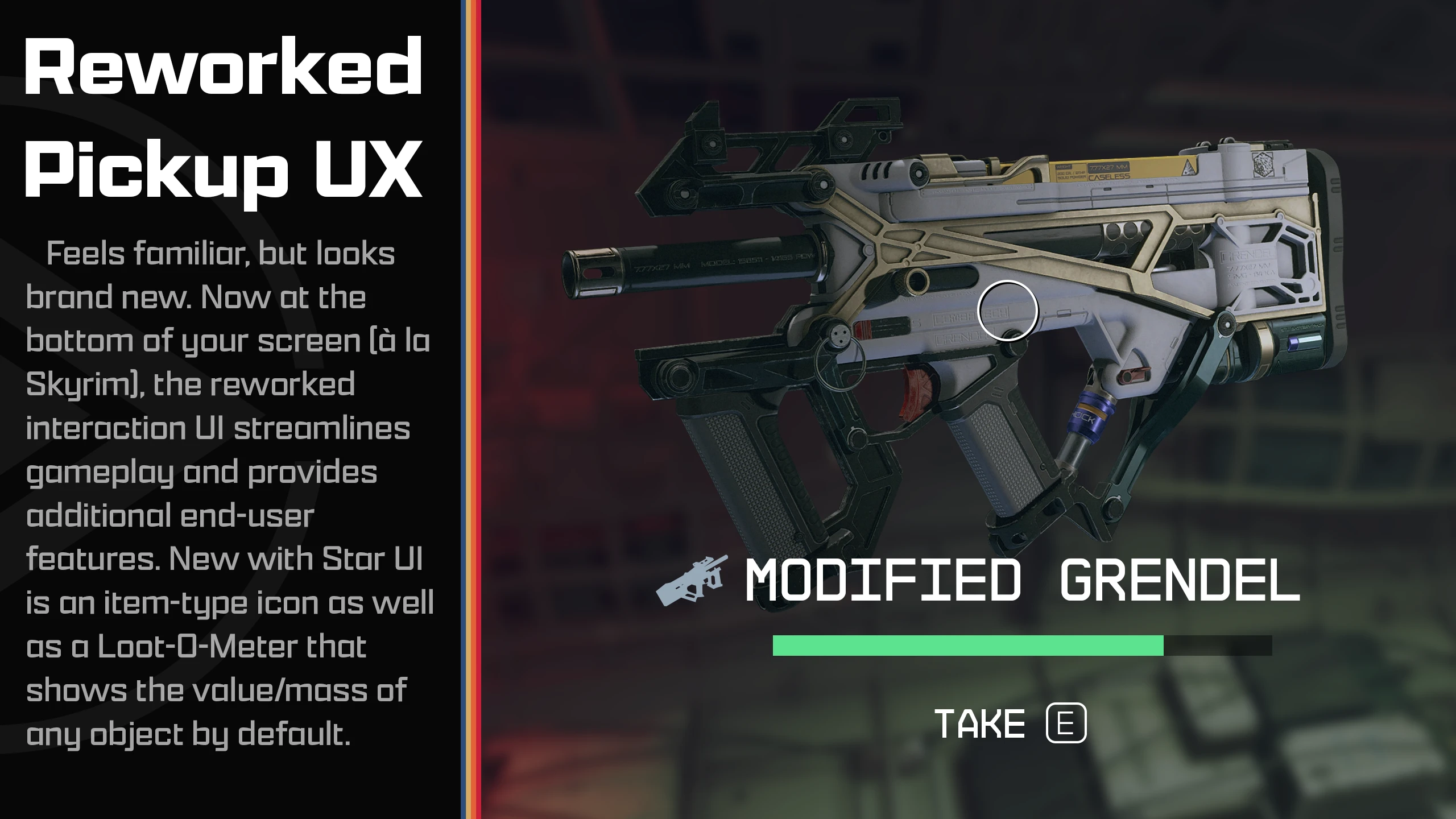
; The “Tag Label” is a alternate (new) way to display the item you’re looking at.
; Displays a smaller widget for the item instead of only big item card – Fixed at the crosshair or (optional) floating above the item in the world
bHudEnableTagLabelCrosshair = 1
; Tag label – But this one is bound to the world item (You should only use one to prevent confusion)
bHudEnableTagLabelWorld = 0
; Position of the Tag Label (relative to crosshair/world item)
fHudTagPositionX = 0
fHudTagPositionY = 50
; Scale (size) of the Tag Label (in percent)
iHudTagLableScale = 100
; Add an item tag icon to items
bHudTagShowItemTags = 1
; Colerize
sHudTagLabelColor =
sHudTagLabelStealColor = 255, 128, 128
; Force the item tag icon to be in the same color as the label
bHudTagLabelForceTagIconColor = 0
; The newest high-tech HUD addon by the Constellation engineers: Showing the value/mass as a bar on your HUD!
; The Loot-O-Meter will add a bar below the item name which visualizes the V/M (“value per mass”) value for this item.
; The higher the V/M value, the fuller the bar.
bHudTagLabelLootOMeter = 1
; ==============
; Loot-O-Meter
; ==============
; Customize the look of your Loot-O-Meter (part of Tag Label):
iLootOMeterWidth = 200
iLootOMeterHeight = 8
iLootOMeterRoundEdges = 3
sLootOMeterBgColor = 140,140,140,20
sLootOMeterBarColor = 255,255,255,100
iLootOMeterMaxValue = 1000
bLootOMeterColorBasedOnValue = 1
sLootOMeterValueBasedColor1 = 135, 30, 30
sLootOMeterValueBasedColor2 = 135, 135, 30
sLootOMeterValueBasedColor3 = 30, 135, 30
; ==========
; Big Door
; ==========
; Enables a big door icon when you travel to other areas/cells (part of Tag Lable)
bHudEnableBigDoorIcon = 1
; Colorize the door icon
sHudBigDoorColor =
; ============
; Button Bar
; ============
; Smaller buttons for the button bar
bButtonBarSmallerButtons = 1
; Moves the button bar to the new tag label
bButtonBarMoveToTagLabel = 1
; Colorize the button bar
sHudButtonBarColor =
sHudButtonBarStealColor = 255, 128, 128
; Fade out things you read once and never need again
iButtonBarOpacity = 50
;=============
; Item card
;=============
; Display the item tag icon in the item card
bItemCardAddItemTag = 1
; Add a new entry for the value per mass
bItemCardAddValuePerMass = 1
; Add a new entry for Burst DPS (Damage per second, without reloading time)
bItemCardAddDPS = 1
; Colorize the item card
sItemCardColor =
; Colorize the item card for STEAL mode
sItemCardStealColor = 255, 128, 128
; Position of the item card (when hovering items. Default: 1168, 257)
; Anchor for the item cards position (this determines in which direction the item card will expand from your given position, e.g. TopLeft will expand to right/down)
; Valid values for anchor: TopLeft, TopRight, BottomLeft, BottomRight
; Scaling (size) of the item card (in percent)
;fItemCardPositionX = 1168
;fItemCardPositionY = 257
;sItemCardAnchor = TopLeft
;iItemCartScale = 100
; Move the item card to the top right for single item displays
fItemCardPositionX = 1900
fItemCardPositionY = 20
sItemCardAnchor = TopRight
iItemCartScale = 100
; Position of the item card in scanner mode (Default: 1358, 257)
fItemCardScannerPositionX = 1358
fItemCardScannerPositionY = 257
sItemCardScannerAnchor = TopLeft
iItemCartScannerScale = 100
[LootList]
; ===========
; Loot List
; ===========
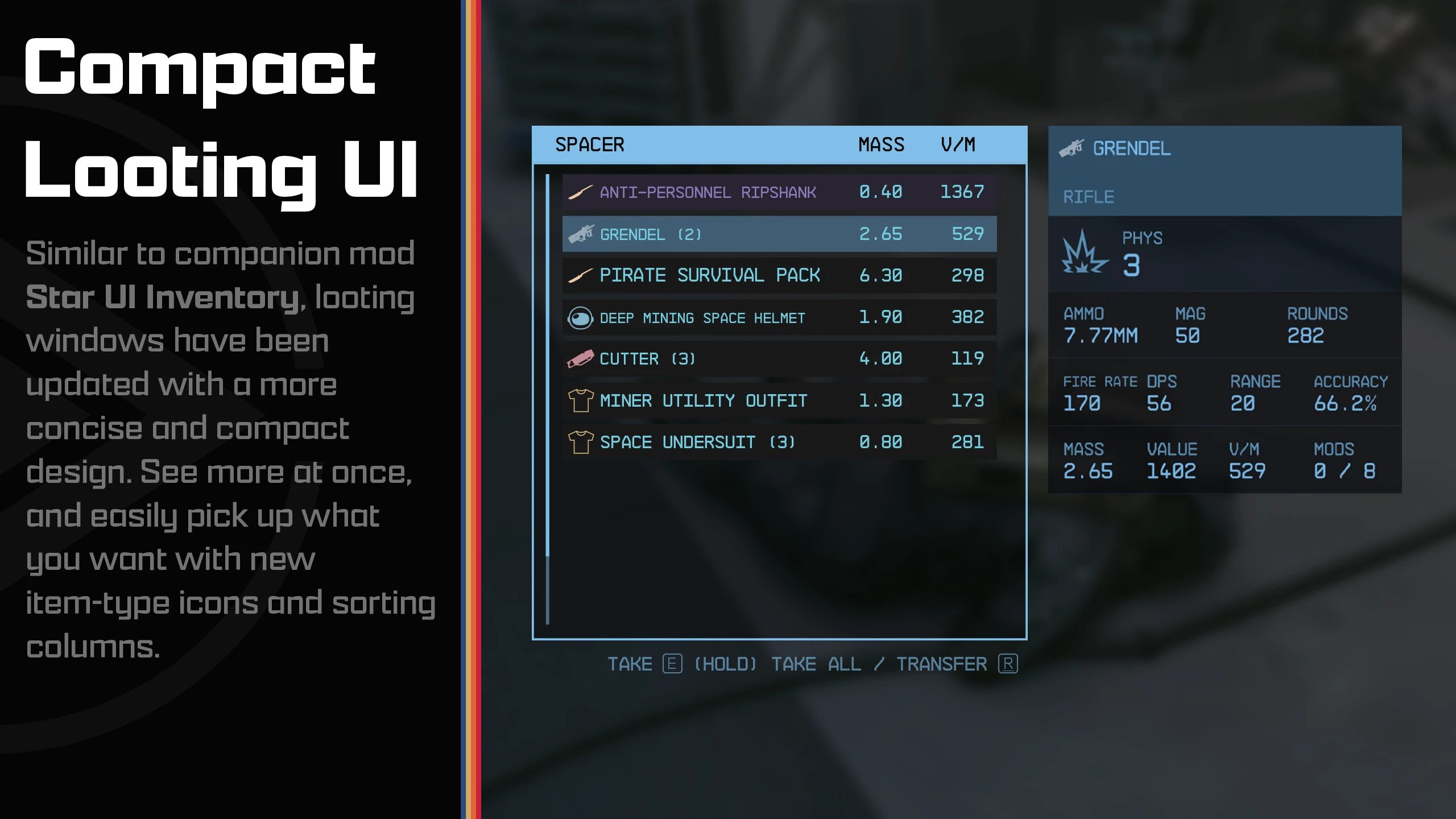
; Enable StarUI HUD’s upgraded loot list with icons, extra information, resizable and more
bEnable = 1
; Show item icon tags in the list
bShowItemTags = 1
; Add extra columns to the loot list. Youi can add multiple columns separated by comma.
; For a list of available columns see the list later in the file. Most probably you like to use one of those: VPM, DPS, VALUE, VALUE_STACK, MASS, MASS_STACK
; Tip: You can toggle the sort when looking at the list and pressing ALT key
sAddColumns = VPM
; Sort the loot list by a column (the column does not need to be visible). You can use TAG here to sort by the items tag. Leave empty or use GAME for vanilla sort.
sSortByColumn = TAG
; Width of the additional column
iExtraColumnWidth = 65
; Add the extra function “Take All” to loot list (Hold the take key to take all at once)
bAddTakeAll = 1
; Show an item card to the item you have hovered in the list
bShowItemCard = 1
; Select categories for the item card. Only list items in this categories will show a item card
sShowItemCardCategories = Weapons, Ammo, Spacesuits, Packs, Helmets, Apparel, Throwables, Aid, Notes, Resources, Misc
; Auto-adapt list height to content (max to the specified height above)
bAdaptHeightToContent = 1
; Colorize the list!
sColor =
sStealColor = 255, 128, 128
; Scale (size) of the whole list
iScale = 100
; List position in normal mode (Default: 1193, 302)
fPositionX = 1193
fPositionY = 302
; List dimension in normal mode (Vanilla: 373×248, Default: 373×390)
iWidth = 373
iHeight = 390
; Position of the lists item card (when you have choosen bShowItemCard=1)
fItemCardPositionX = 1610
fItemCardPositionY = 258
; Anchor for the item cards position (this determines in which direction the item card will expand from your given position, e.g. TopLeft will expand to right/down)
; Valid values for anchor: TopLeft, TopRight, BottomLeft, BottomRight
sItemCardAnchor = TopLeft
; Scaling (size) of the item card (in percent)
iItemCardScale = 80
; Attach point of the reticle line (from item circle to the list). Available: TopLeft, TopRight, BottomLeft, BottomRight
sReticleLineAttachPoint = TopLeft
; Loot list position in scanner mode
; Note: The list headline is provided by the scanner interface. Keep that in mind when changing the position in scanner mode.
fScannerPositionX = 1380
fScannerPositionY = 565
; Loot list dimension in scanner mode
iScannerWidth = 373
iScannerHeight = 248
; Position of the lists item card (in scanner mode and when you have choosen bShowItemCard=1)
fScannerItemCardPositionX = 1410
fScannerItemCardPositionY = 500
iScannerItemCardScale = 80
sScannerItemCardAnchor = BottomLeft
; =============
; HUD Widgets
; =============
; Re-position and colorize every widget like you want. If you set no value for the color, then sHudDefaultColor is used.
;
; Enable or disable the whole widget with bEnabled.
; Also allows you to enlarge or shrink the widget (fScale) and rotate it (fRotation).
;
; Special values are explained above the setting.
; For a explanation of position and color see the file header.
[Watch]
; The watch in the bottom left area
bEnabled = 1
; Colorize the widget. If the value is empty, the default HUD color will be used.
sColor =
bForceColor = 0
; Re-position the widget – default position: 72, 808 (for 16:9. Different on widescreen!) – Remove the leading “;” to adjust position
; Note: The widget uses a 3D effect, so adjusting the position can be tricky (Just try some values and see where it ends)
;fPositionX = 72
;fPositionY = 808
fScale = 100
fRotation = 0
; Disable the 3D effect
bDisable3D = 0
; Adjust the 3D transformation matrix. Warning: Only for 3D experts! (remove “;” to change the values)
;s3DTransformationMatrix = 1.065422, -0.06871, -0.150934, 0, -0.037639, 1.062183, 0.191458, 0, 0.127329, -0.171576, 0.976908, 0, 41.719982, 807.84552, -4.454321, 1
[RightMeters]
; Displays player health, weapon, grenades etc.
bEnabled = 1
; Colorize the widget. If the value is empty, the default HUD color will be used.
sColor =
bForceColor = 0
; Re-position the widget – default position: 1836, 1032 (for 16:9. Different on widescreen!) – Remove the leading “;” to adjust position
; Note: The widget uses a 3D effect, so adjusting the position can be tricky (Just try some values and see where it ends)
;fPositionX = 1846
;fPositionY = 1037
fScale = 100
fRotation = 0
; Disable the 3D effect
bDisable3D = 0
; Adjust the 3D transformation matrix. Warning: Only for 3D experts! (remove “;” to change the values)
;s3DTransformationMatrix = 0.958322, 0, -0.285688, 0, -0.014952, 0.99863, -0.050155, 0, 0.285297, 0.052336, 0.957009, 0, 1879.831787, 1042.355225, 16.766846, 1
[Crosshair]
; The crosshair
bEnabled = 1
; Colorize the widget. If the value is empty, the default HUD color will be used.
sColor =
bForceColor = 0
; Re-position the widget – default position: 960, 540
fPositionX = 960
fPositionY = 540
fScale = 100
fRotation = 0
[HitAndKill]
; Hit and kill markers on the crosshair
bEnabled = 1
; Colorize the widget. If the value is empty, the default HUD color will be used.
sColor =
bForceColor = 0
; Re-position the widget – default position: 960, 538
fPositionX = 960
fPositionY = 538
fScale = 100
fRotation = 0
[ExplosiveIndicator]
; Shows an indicator when an explosive thing is near you
bEnabled = 1
; Colorize the widget. If the value is empty, the default HUD color will be used.
sColor =
bForceColor = 0
; Re-position the widget – default position: 960, 540
fPositionX = 960
fPositionY = 540
fScale = 100
fRotation = 0
[DirectionalHit]
; Displays a indicator from where you were hit
bEnabled = 1
; Colorize the widget. If the value is empty, the default HUD color will be used.
sColor =
bForceColor = 0
; Re-position the widget – default position: 960, 540
fPositionX = 960
fPositionY = 540
fScale = 100
fRotation = 0
[StealthMeter]
; Shows your current stealth level
bEnabled = 1
; Colorize the widget. If the value is empty, the default HUD color will be used.
sColor = 255, 255, 255
bForceColor = 0
; Re-position the widget – default position: 960, 128
fPositionX = 960
fPositionY = 128
fScale = 100
fRotation = 0
[ArtifactPowers]
; Artifact powers widget. You know what it is when you are at that stage in the game.
bEnabled = 1
; Colorize the widget. If the value is empty, the default HUD color will be used.
sColor =
bForceColor = 0
; Re-position the widget – default position: 960, 540
fPositionX = 960
fPositionY = 540
fScale = 100
fRotation = 0
[SocialCommands]
; I have no idea what this is. But that won’t prevent me from letting you modify it.
bEnabled = 1
; Colorize the widget. If the value is empty, the default HUD color will be used.
sColor =
bForceColor = 0
; Re-position the widget – default position: 1090, 190
fPositionX = 1090
fPositionY = 190
fScale = 100
fRotation = 0
[CrewBuff]
; Crew buffs widget
bEnabled = 1
; Colorize the widget. If the value is empty, the default HUD color will be used.
sColor =
bForceColor = 0
; Re-position the widget – default position: 1851, 139
fPositionX = 1851
fPositionY = 139
fScale = 100
fRotation = 0
[QuestMarker]
; The floating quest marker on the HUD
bEnabled = 1
; Colorize the widget. If the value is empty, the default HUD color will be used.
sColor = 255, 255, 255
bForceColor = 0
[HitDamage]
; Shows hit damage
bEnabled = 1
; Colorize the widget. If the value is empty, the default HUD color will be used.
sColor = 255, 255, 255
bForceColor = 0
[EnemyHealth]
; Contains the enemy health bars.
bEnabled = 1
; Colorize the widget. If the value is empty, the default HUD color will be used.
sColor = 255, 255, 255
bForceColor = 0
; ========================
; Doc: Available columns
; =======================
; AMMO – Show used ammo type
; AMMO_ROUNDS – Show available rounds for ammo type
; DR – Damage resistance
; DMG – Weapon damage
; DPS – Weapon damage per second (Burst DPS, so without reload-time)
; FAV – Shows your favorite assignment number
; MASS – Weight
; MASS_STACK – Weight per stack
; RARITY – Shows the rarity of the item (rare, epic, legendary for weapon/apparel and common, uncommon, rare,… for other items)
; VALUE – VALUE
; VALUE_STACK – Value per stack
; VPM – Value / Mass
; Detail columns for weapon
; WMANUFACTURER – Shows the manufacturer of the weapon
; WACC – Weapon accuracy
; WBASENAME – Shows the base name of the weapon (e.g. Eon, Grendel, Maelstrom,…)
; WMAG – Weapon ammo capacity
; WMODS – Weapon mod slots ( used / max )
; WRANGE – Weapon range
; WROF – Weapon rate of fire (gund) / Attack speed (melee)
; WTYPE – Weapon Type
; Detail columns for armor
; ATHERMAL – Armor thermal
; ACORROSIVE – Armor corrosive
; AAIRBORNE – Armor airborne
; ARADIATION – Armor radiation
; Detail columsn for Damage
; PHYS – Weapon physical damage / Armor physical resistance
; ENGY – Weapon energy damage / Armor energy resistance
; EM – Weapon EM damage / Armor EM resistance
; ELEC – Weapon electrical damage / Armor electrical resistance [Currently unused in the game]